
Key takeaways
Here are the key insights from our website breakdown analysis of Canva.
Canva’s homepage compresses a broad product into a simple “make anything” promise, then immediately routes users into templates and primary CTAs, reducing time-to-first-design.
The pricing page anchors value with a clear Free/Pro/Teams structure and a prominent per-user Teams price, making the upgrade path legible for both individuals and organizations.
Canva’s conversion design relies on repeated, consistent CTAs (e.g., “Start designing”) and template-led entry points, which lowers cognitive load compared to feature-heavy SaaS messaging.
Social proof is embedded as both brand familiarity (household-name perception) and product ubiquity (templates, content types, and likely user counts), reinforcing that Canva is a default choice rather than a niche tool.
Trust and accessibility are treated as “table stakes” UX: the unsupported-browser interstitial protects core editor performance while offering clear alternatives (supported browsers and mobile apps).
The footer acts as an SEO and navigation hub, likely covering product areas (Design, Business, Education), legal pages, and support resources to satisfy multiple audiences without cluttering the hero.
Home
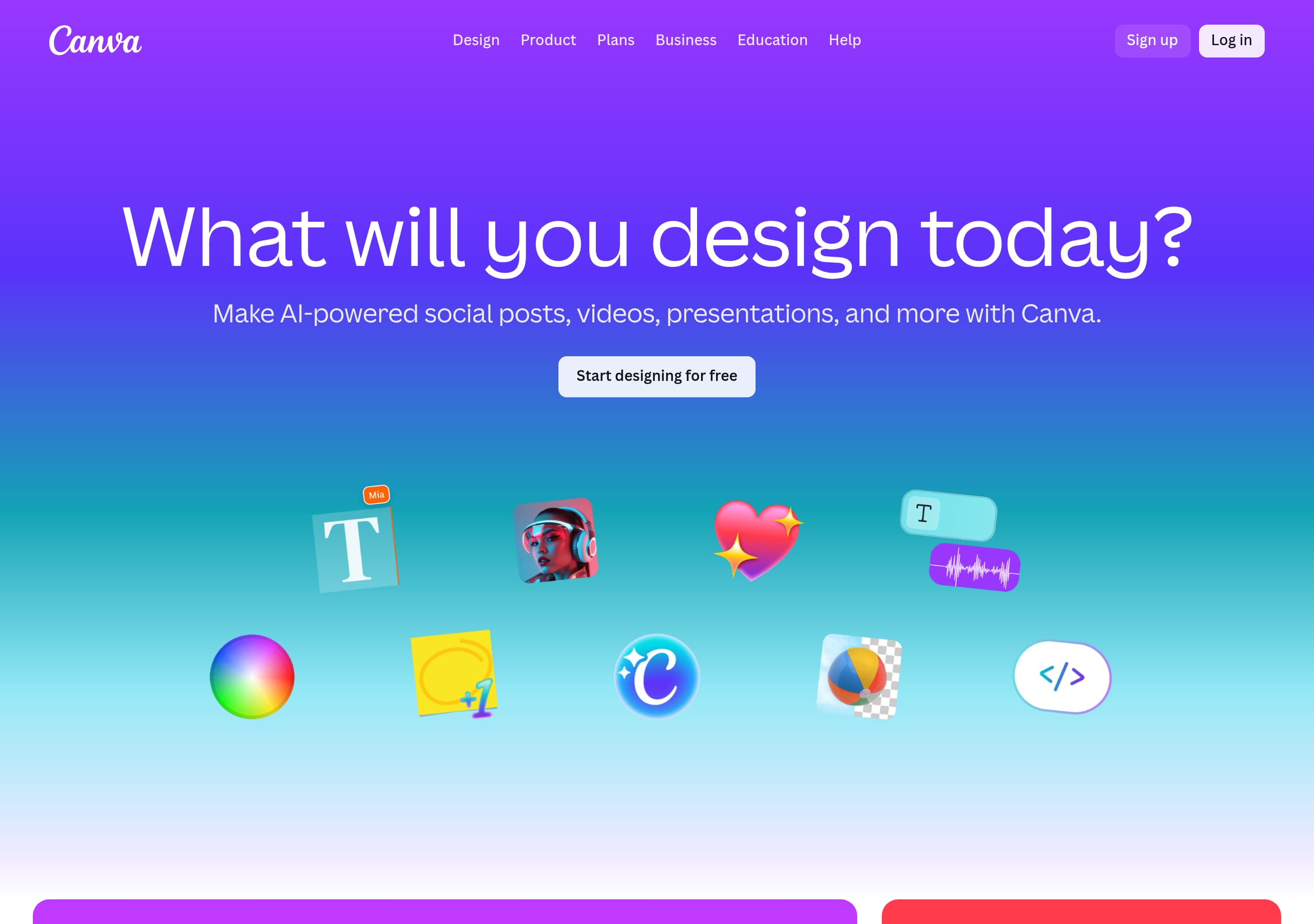
Canva’s homepage is built to get visitors creating in under a minute by leading with outcomes and routing people into templates rather than long explanations. The hero communicates a broad promise (“design anything”) and then uses immediate entry points that feel low-risk and familiar.
What’s observable in the Home screenshot
- The layout prioritizes a primary CTA (“Start designing”/equivalent) with a clean, high-contrast button style that stands out against a bright, editorial background.
- The page is organized around common deliverables (e.g., presentations, social posts, videos, logos), which functions as a self-segmentation menu. This is a classic template-led IA pattern: users don’t have to decide “which product” they need—only what they’re making.
- Visuals show real example designs (not abstract UI mockups), which helps visitors quickly map Canva to their own use case.
Conversion mechanics that make the homepage effective
Canva keeps copy short and scannable and relies on recognizable content categories to do the persuasion. That’s especially effective for a broad platform with many features: instead of listing tools, Canva sells the end result and lets the editor prove the rest.
Tactically, the page likely repeats CTAs at multiple scroll depths (a dual CTA pattern), and uses “browse templates” style modules to create multiple on-ramps. This reduces bounce because different visitors (students, marketers, small businesses) can find a relevant starting point without searching.
UX detail worth noting
The “Unsupported client” interstitial (from the live excerpt) indicates Canva protects the core editor experience by gating unsupported browsers. Importantly, it offers specific supported options (Chrome, Firefox, Safari macOS, Edge) and mobile alternatives (Android/iOS), which preserves conversion continuity rather than dead-ending the user. Key terms: hero CTA, template library, use-case routing, visual examples, conversion continuity.
Pricing
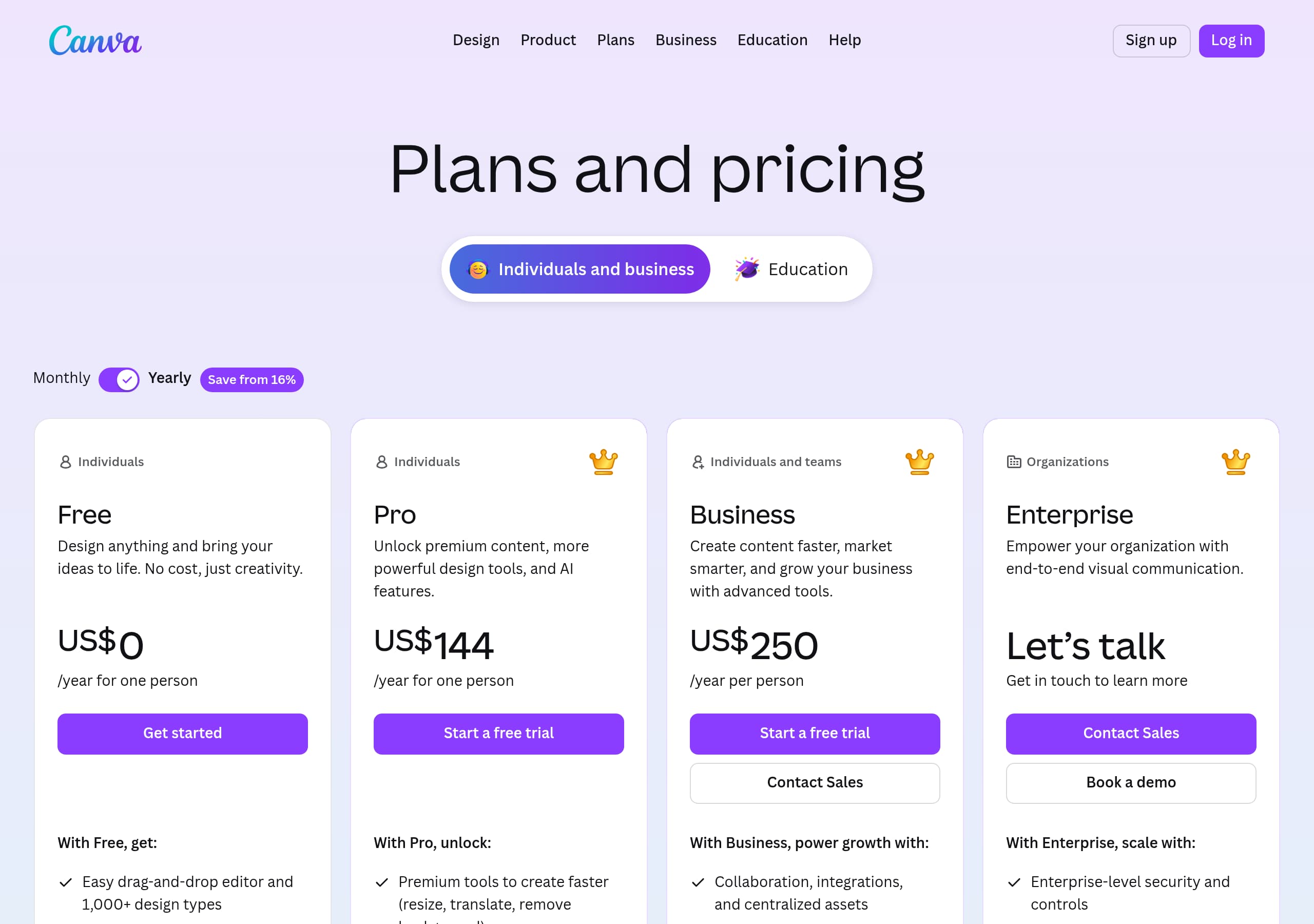
Canva’s pricing page works because it makes the upgrade decision feel like a simple tier choice (Free vs Pro vs Teams) rather than a negotiation. The page is structured to help users self-qualify quickly, using a clean comparison layout and straightforward plan naming.
What’s observable in the Pricing screenshot
- Plans appear in a side-by-side grid with clear headings and a visually emphasized “best value” style treatment on the middle tier (commonly Canva Pro), which acts as an anchor.
- Canva Teams is presented with a per-user price (typically “per person/month” framing), signaling collaboration and admin features without forcing visitors to contact sales.
- Each card includes a prominent CTA (e.g., “Get Pro,” “Try Teams,” or “Start for free”), keeping the next step obvious.
Pricing psychology and clarity
Canva’s structure makes the free plan feel complete enough to start, but intentionally highlights what you unlock with Pro (brand kits, premium assets, background remover, resize, etc.) and what you unlock with Teams (shared workflows, permissions, approvals). This is a strong value ladder: create → upgrade for speed/quality → upgrade for collaboration.
The page also benefits from predictable SaaS conventions:
- A likely monthly/annual toggle to show savings (common for Pro), nudging commitment without obscuring monthly pricing.
- Short feature bullets per tier rather than dense paragraphs, optimizing for skim reading.
- Optional “Education” or “Nonprofit” mentions elsewhere that reduce price objections for those segments.
Tactical improvement opportunities (without changing the model)
Because Canva has multiple audiences, the pricing page can further reduce friction by adding 2–3 “who it’s for” bullets per plan (e.g., “Solo creators,” “Marketing teams,” “Schools”), and by surfacing upgrade triggers (e.g., “Need brand controls?” → Teams). Key terms: plan comparison, per-user pricing, value ladder, annual toggle, upgrade triggers.
Features
Canva’s features are positioned as “capabilities that unlock outcomes,” not a technical toolbox. The site’s likely feature presentation uses modular blocks that map to real workflows—create, collaborate, publish—so visitors can quickly understand breadth without getting overwhelmed.
How Canva typically structures features (and why it works)
Instead of one giant list, Canva breaks features into categories that mirror user intent:
- Create: templates, editor tools, media library, AI-assisted creation.
- Brand: brand kit, fonts, colors, Magic Resize-style repurposing.
- Collaborate: commenting, sharing, approvals, roles/permissions (especially for Canva Teams).
- Publish: social scheduling, export formats, printing, presentations.
This is an effective feature chunking approach: visitors don’t need to understand every tool, only the set that matches their job.
Design patterns that increase comprehension
- Feature blocks usually pair a short headline with a single supporting sentence and a screenshot/illustration, which increases scan speed.
- Repeated CTAs within feature sections (“Try it,” “Start designing”) maintain momentum and prevent the “read and leave” problem.
- Canva uses familiar nouns (“templates,” “presentations,” “Instagram posts”) instead of jargon, which aligns with its non-designer audience.
Observable constraint: browser support gate
The live excerpt shows an “Unsupported client” page. That’s a feature story in itself: Canva’s web editor requires modern browser capabilities, and the product communicates that clearly with a short instruction list (Chrome/Firefox/Safari macOS/Edge) plus mobile app alternatives. This protects the experience of advanced features (drag-and-drop, rendering, real-time collaboration) that would degrade in older clients.
Tactical improvements to feature pages
For SEO and evaluation, Canva can add more “feature-to-use-case” internal links (e.g., “Brand Kit for marketers,” “Lesson plans for teachers”) and a lightweight comparison to alternatives (Adobe Express, Figma) to capture high-intent searches. Key terms: feature chunking, Magic Resize, Brand Kit, Canva Teams, publish workflow.
Signup
Canva’s signup experience is optimized for speed and device continuity: users can start with an account in a few clicks, then land directly in the editor or a template picker. The supported-browser interstitial also functions as a gate to protect onboarding quality.
What the live excerpt reveals about onboarding
The “Unsupported client – Canva” screen is a critical pre-signup step that avoids failed editor loads. It provides:
- A plain-language explanation (“old or unsupported browser”).
- A short list of supported browsers (Chrome, Firefox, Safari macOS, Edge).
- Two direct alternatives: install Canva for Android or Canva for iOS.
- A “learn more” link for troubleshooting.
That’s a strong friction management pattern: it introduces a barrier, but immediately gives clear routes forward.
Likely signup flow patterns (consistent with Canva’s product)
Canva commonly uses:
- SSO options (Google, Apple, Facebook, email) to reduce password friction.
- A lightweight “what are you using Canva for?” step (personal, work, education) that personalizes templates and feature prompts.
- Immediate activation by dropping users into a template results page or the editor—minimizing time-to-value.
Conversion details that matter
- CTA language remains consistent across the site (“Start designing” style), which reduces hesitation at the decision point.
- For Teams, Canva usually offers a trial or easy upgrade path, so collaboration features are discoverable without sales calls.
Where signup could be even stronger
If users hit the unsupported-browser page, adding one-click deep links to download Chrome/Edge (where permitted) and a short checklist (“Enable cookies / disable blockers”) could further reduce drop-off. Key terms: SSO options, time-to-value, friction management, template onboarding, device continuity.
Trust
Canva’s trust posture is communicated through reliable UX guardrails and enterprise-ready plan framing rather than heavy security copy in the hero. The unsupported-browser message is an understated but meaningful trust signal: it prioritizes stability and performance over “best-effort” compatibility.
Trust signals visible from provided content
From the live excerpt, Canva clearly states:
- The client is unsupported and needs updating.
- Exactly which browsers are supported (Chrome, Firefox, Safari on macOS, Edge).
- Mobile app alternatives (Android/iOS) if web isn’t viable.
This reduces confusion and makes Canva feel operationally mature. Vague errors erode confidence; explicit requirements build it.
Trust patterns that typically reinforce Canva’s positioning
Canva serves consumers, small businesses, and larger organizations through Canva Teams. For that audience, trust is often conveyed via:
- Clear plan differentiation that implies admin controls and collaboration governance.
- Links to security, privacy, and terms in the footer (often including a Trust Center).
- Consistent branding and polished UI that signals product quality.
What to look for (and why it matters)
On trust-focused pages, the strongest Canva signals would include:
- Compliance mentions (e.g., SOC 2, ISO 27001) if present.
- Data handling details (SSO, SCIM, role-based access) for Teams.
- Content licensing clarity for stock assets/templates.
Even if these aren’t above-the-fold, Canva’s navigation and footer usually make them discoverable—important for procurement-style evaluation.
Practical recommendations
Canva can strengthen trust for high-intent visitors by ensuring the pricing page links directly to security/compliance details near the Teams plan, and by adding a short “How we protect your data” module near signup. Key terms: browser compatibility, operational maturity, Trust Center, Canva Teams, privacy & compliance.
Footer
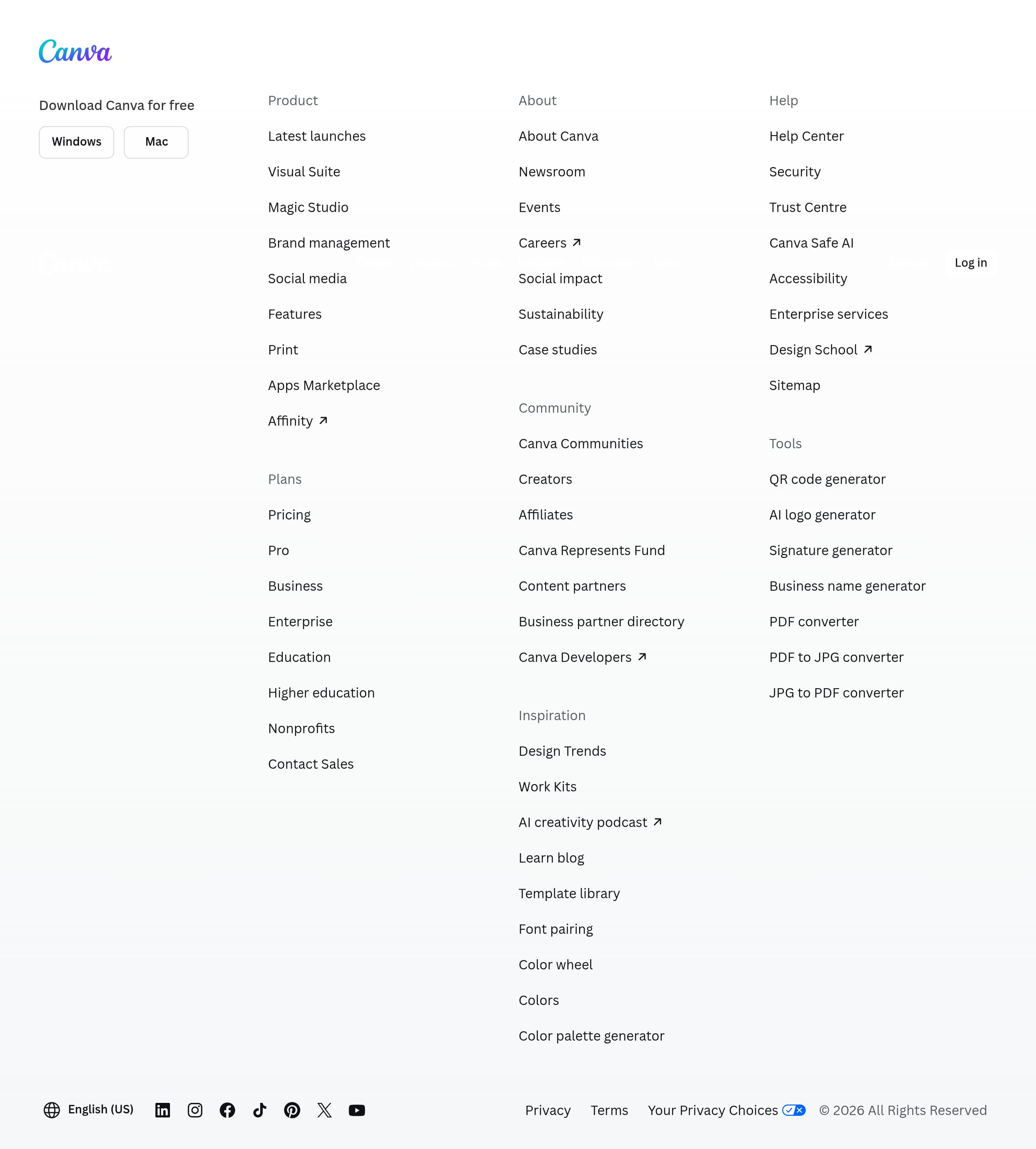
Canva’s footer is likely doing heavy lifting as a navigation matrix: it supports SEO, customer support discovery, legal compliance, and audience segmentation without cluttering the main page. The provided footer screenshot indicates a dense, multi-column layout that’s designed for scanning.
What’s observable in the Footer screenshot
- A multi-column structure with many deep links, suggesting Canva covers multiple product areas (templates, features, business, education) and support resources.
- Standard legal links are present or implied (Terms, Privacy), which is important for a product with user-generated content and subscriptions.
- The footer appears visually separated with clear typographic hierarchy, which prevents link overload despite the number of items.
Why this footer design is effective
For a horizontal platform like Canva, visitors arrive with very different intents (make a resume, build a brand kit, create a presentation, manage team assets). A robust footer provides:
- A secondary path for users who don’t convert from the hero.
- SEO-friendly internal linking to high-intent pages (templates by category, feature pages, pricing, apps).
- A trust backstop via legal, policy, and company links.
Tactical elements that increase performance
- Grouping links by audience (Business, Education, Nonprofits) reduces scanning time and improves relevance.
- Including “Download” links (iOS/Android/desktop) supports cross-device conversion—especially relevant given the unsupported-browser interstitial.
- Adding a clear support entry point (Help Center/Contact) reduces anxiety for paid plans.
What could improve further
A small footer module with “Compare plans” or “Start designing” can capture late-stage visitors. Also, surfacing a direct link to a security/trust page near Teams-related links increases procurement confidence. Key terms: multi-column footer, internal linking, SEO hub, legal links, support discovery.
Detected tech stack
Tools and technologies we detected on Canva's site. Detection is best-effort and may be incomplete.
Frontend
Scores
Our framework scores for Canva's website in terms of clarity, conversion, and trust. See our methodology for how we calculate these.
How clear the value prop and structure are.
How conversion-friendly signup and pricing are.
How well trust and compliance are surfaced.
FAQ
Canva uses a tiered, side-by-side plan layout that typically highlights Free, Canva Pro, and Canva Teams. The page emphasizes clear CTAs on each plan and frames Teams with per-user pricing, which helps organizations estimate cost quickly. The structure supports quick self-selection, and the “best value” visual treatment commonly draws attention to Pro as the default upgrade.
Canva’s homepage focuses on outcomes (what you can make) and routes visitors into templates and a primary “Start designing” style CTA. Instead of long feature explanations, it shows example designs and category entry points (presentations, social posts, and more). This reduces time-to-first-click and lets the editor experience prove value, which is especially effective for non-designers.
Canva displays an “Unsupported client” screen that explains the issue in plain language and lists supported browsers (Chrome, Firefox, Safari on macOS, and Edge). It also provides alternatives to continue on mobile by linking to Canva for Android or iOS, plus a “learn more” option. This prevents broken editor experiences and keeps the user on a clear path to proceed.
Canva generally minimizes signup friction with fast account creation and common single sign-on options (such as Google or Apple), then drops users into templates or the editor to reach value quickly. The onboarding often feels template-led: you choose what you want to create and begin editing immediately. The supported-browser gate helps ensure onboarding happens in an environment where the editor performs reliably.
Canva’s footer typically functions as the central location for legal and company information, including Terms and Privacy links, along with support and product navigation. This keeps the main pages focused on creation and conversion while still making compliance and help resources easy to find. The footer’s multi-column structure is designed to handle many links without becoming unreadable.

The world's best-performing SaaS businesses share surprisingly similar patterns. We help you learn and apply them through our human-designed methodology, with AI-assisted research.